

Welcome back to a new tutorial! If you have a Microsoft 365 account and want to access your contacts and calendar directly in the native iPhone or iPad apps, meaning Contacts.app, Mail.app and Calendar.app, there are essentially two ways to do it.
One is simple and quick to set up, while the other requires a few more steps but gives you a significantly higher level of control and security.
In this article I’ll walk you through both, helping you understand when it makes sense to use one over the other, and, spoiler, I’ll tell you right away which one I prefer. 😉
⚠️ Important!
The editorial offering of ITSpecialist.News now includes an English-language section with a selection of my main content.
Since most of it is translated from Italian, you might prefer to receive only one version. Here’s how to set your preference in 30 seconds:
→ Go to itspecialistnews.substack.com/account
→ Open the “Notifications” section
→ English reader? Keep only “ITSpecialist.News – Same Content, in English” active
→ Italian reader? Keep only “ITSpecialist.News | Riccardo Corna” active
Method 1: The Intune Email Profile
How it works
The first method is based on the Intune Email template. The idea is straightforward: you create a configuration profile, assign it to users or devices, and iOS automatically receives the account settings via Exchange ActiveSync.
From the user’s perspective, the experience is very smooth. The account lands directly in the system settings and naturally feeds Mail, Contacts and Calendar.
Profile configuration
To configure it, go to the Intune portal under Device Configuration, select iOS/iPadOS, choose the Templates > Email path and set the account parameters. Assign the profile and let Intune handle the rest.
Result on the device
Once the profile is received, the account appears in iOS settings and from there it can feed all three native apps. It's integrated, consistent with the system experience, and requires no manual action from the user.
Ok… so what’s the catch?
There’s a downside you can’t ignore.
Native iOS apps do not support Intune App Protection Policies.
This means you don’t get the same level of MAM protection you get with Outlook: no copy and paste controls, no restrictions on data transfer between apps, no application access protection.
Furthermore, this approach doesn’t integrate well with modern Conditional Access models based on Require App Protection Policy.
For this reason, I now consider it a solution to use only when you have no advanced Mobile Application Management or DLP requirements.
Are you sure you don’t have any? 🤔
Method 2: App Configuration and App Protection on Outlook
A different approach
The second method changes the way you approach the problem. Instead of configuring the account at the operating system level, you work with Outlook as a managed app, combining App Configuration Policy and App Protection Policy.
The result is more control, more granularity and a significantly higher level of security. You can govern how data moves within the app, restrict certain actions, protect access with an app PIN and align with Conditional Access policies like Require app protection policy.
There is a trade-off to keep in mind: in this flow, native sync applies to contacts. The calendar, on the other hand, stays inside Outlook — which keeps things more consistent with the app model and the governance you’re aiming for.
App Configuration Policy
Start with the App Configuration Policy. Here you're not just creating an account in the operating system: you're shaping the behavior of the Outlook app in a managed context.
App Protection Policy
The second piece is the App Protection Policy. And this is where the real difference from the previous method becomes clear. With app protection policies you can apply controls that native iOS apps simply don't support: you can govern how data is shared, copied or transferred between apps, along with many other settings. Let's walk through an example configuration.
Final result
With this configuration you get native contact sync, but within a much more controlled security framework.
Let’s look at the user experience!
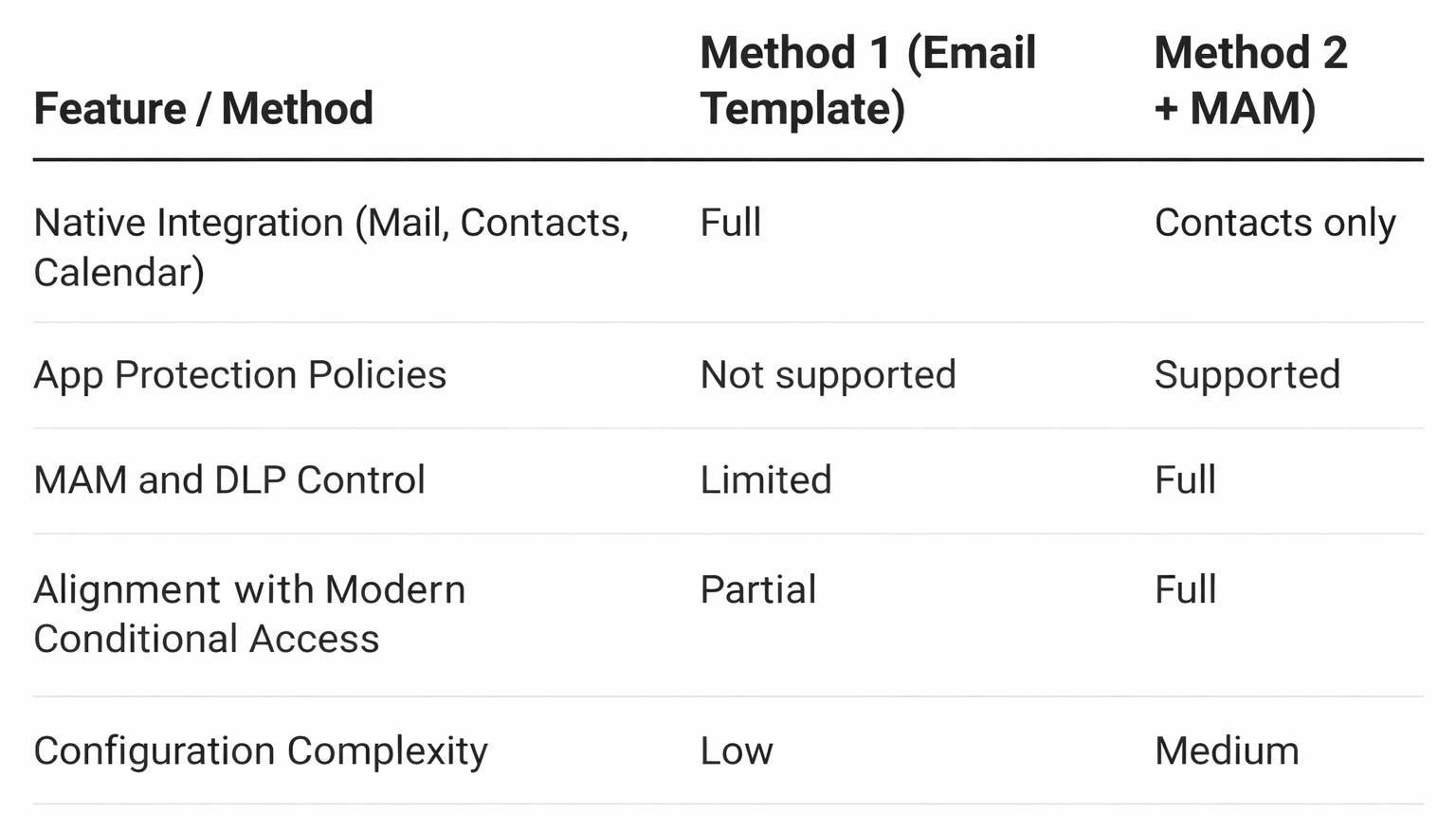
Comparison between the two methods
Attached documentation
f you want to dig into every technical detail and licensing requirements, here are some links to the official Microsoft documentation, fresh and ready for the summer that, by now, is officially here!
App Configuration Policy – iOS/iPadOS
App Protection Policy – iOS/iPadOS
Email Configuration Template (Exchange ActiveSync) – iOS/iPadOS
Conclusions
If you found this article useful, I'll see you here on ITSpecialist.News: practical guides, news and in-depth content on the Microsoft world, endpoint management and enterprise security, no filters, no noise.
See you soon… you legends!
Rick


