

IT Specialists, hello everyone! Today we're talking about Multi Admin Approval (MAA), a Microsoft Intune feature that allows you to protect critical operations by requiring explicit approval from a second administrator before they are executed. A concrete governance tool that reduces the risk of human errors and unauthorized actions, adding a real control layer over the most sensitive operations in your managed environment.
⚠️ Important!
The editorial offering of ITSpecialist.News has expanded with a new English-language section that collects a selection of my main content.
Since these are largely the same articles translated, you might not want to receive them twice, especially if you prefer reading in a specific language.
If you want to choose which language to receive content in:
→ Go to itspecialistnews.substack.com/account
→ Open the “Notifications” section
→ If you’re an English reader, enable only “ITSpecialist.News – Same Content, in English” and disable other options
→ If you're an Italian reader, keep only "ITSpecialist.News | Riccardo Corna" enabled
Prerequisites and Licensing
Before diving into the console, let’s align on what’s needed.
The requirements are fairly straightforward:
Microsoft Intune Plan 1 – Plan 2 is not required for MAA.
Intune managed devices.
Involved users must have appropriate permissions in the Intune portal (we’ll see this shortly).
For all technical details, I refer you to the official Microsoft documentation attached at the end of the article.
The Three Actors Involved
Before starting the configuration, it’s important to understand a fundamental concept: in an MAA scenario, three distinct actors come into play:
The admin who creates and manages MAA policies: decides which operations should be subject to approval and who has the right to approve them.
The admin approver: is the “second pair of eyes” who receives requests and approves or rejects them.
The change requestor: is the operator (typically a Help Desk operator) who wants to perform a protected operation and must make an explicit approval request.
These three roles interact in sequence. In the tutorial we’ll see them all in action.
Ready? Let’s go!
Creating the Approver Group on Microsoft Entra
The first thing to do is create a security group on Microsoft Entra ID that will contain administrators with the approver role. MAA relies on Entra groups to know who can approve what, so this is the mandatory starting point.
Go to the Microsoft Entra ID portal, create a new security group (I called it something sensible like “Intune MAA Approvers”) and add the administrator who will act as approver as a member.
Nothing complicated so far. But before moving on to the MAA policy, there's a step that may seem strange but is absolutely fundamental.
Don't skip it and carefully read all the options you have.
Assigning an Intune RBAC Role to the Group
The newly created Entra group must be assigned to an Intune RBAC role.
Permessi necessari per approvare/rifiutare le richieste
The approver must:
Have Read permissions on all types of objects/configurations/policies they need to approve.
Be able to approve policies with the RBAC permission Approval for Multi Admin Approval, which can be found under the Multi Admin Approval section in the list of RBAC role permissions.
So, in simple terms, you have two options:
If your approver is an Intune Administrator, you do not need to create a specific RBAC role. You can assign your approver group to any RBAC role, even Read Only Operator. This is what I did because, frankly, since it is a lab I do not have enough licenses to cover all the users involved. I chose this path for simplicity and to show you that assigning the RBAC role is essential.
If your approver is NOT an Intune Administrator, then you must assign the approver group to a dedicated RBAC role with Read permissions for everything that needs to be approved, plus the Approval for Multi Admin Approval permission. For example, you could clone the Read Only Operator role and add the specific Approval for Multi Admin Approval permission.
All clear? I hope so. Now, let’s assign the role to the approver group!
Why is it necessary? Because if the group has no role assigned in Intune, the system does not consider it relevant and, be careful, the group membership is automatically cleaned up. The approvers disappear, your configuration stops working, and you don’t immediately notice.
Ok, now we can finally create the policy.
Creating the Multi Admin Approval Policy
Here we are at the heart of the configuration.
Go to Intune > Tenant Administration > Multi Admin Approval and create a new Access Policy.
Here you define which operation should be protected by approval. In our example, we’re protecting device wipe, one of the most impactful operations that exist in Intune, perfect for demonstrating MAA in action.
Set the operation type, select the approver group created in the previous step, and save.
⚠️ Be careful though: the policy is not yet active. And here comes the first of the “non-obvious” steps of MAA, which often surprises those configuring it for the first time.
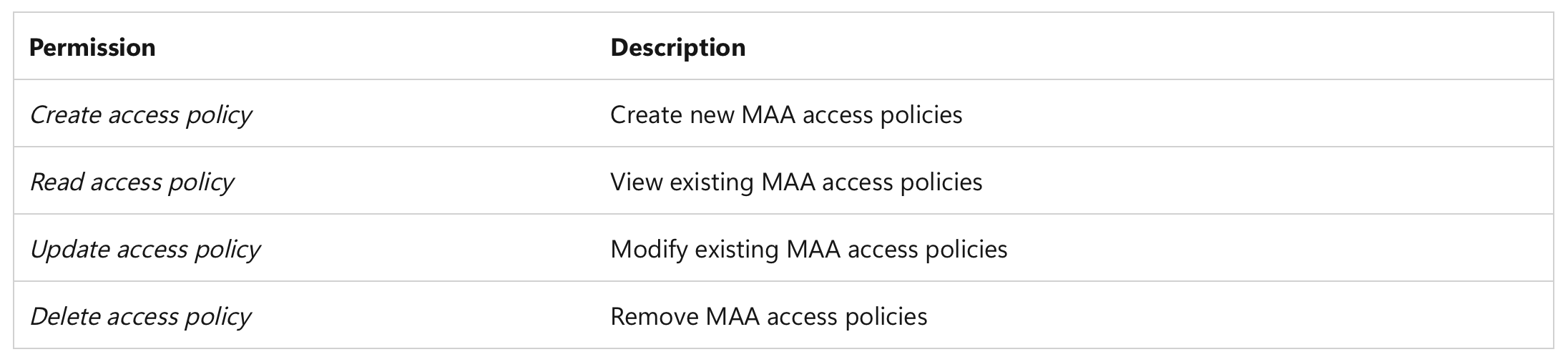
Permissions required to create and manage Access Policies
There’s another thing to keep in mind: the account that creates and manages the MAA policies must have the correct permissions. Here you have two options.
The first one is to use the Intune Administrator role (also known as Intune Service Administrator in Microsoft Entra): it has full read and write access to Intune, so it can do everything.
If you choose this route, then you can also associate the approvers group with the Read only Operator RBAC role, as I do in the example in the video.
In the video, I use this approach for simplicity and, frankly, because I don’t have enough licenses to test everything with different people and admins. 😆
However, be careful: Microsoft itself recommends not using it for the regular management of access policies, precisely because it is a broadly privileged role.
The second option, which is recommended for production environments, is to create a custom RBAC role in Intune with the specific permissions for MAA.
In this case, the RBAC role to which you associate the approvers group is critical!
The principle of least privilege, as always, is your best friend.
The Approver Approves the Policy Creation
Exactly: even the creation of the MAA policy itself requires approval.
The admin approver accesses the Intune portal and goes to the Admin Tasks section, where they find the pending request.
The approver verifies the request, optionally adds a note, and approves. The status changes to Approved.
But it’s not finished yet! One last very important step remains.
The First Admin Completes the Request
A request in Approved status is not an executed request. The admin who created it must return to Admin Tasks and explicitly complete it.
Only when the status becomes Completed is the policy actually active.
This behavior always applies, for any operation protected by MAA: approval is not enough, you also need to complete the cycle.
We also see this in the wipe example below.
Hazel requests a wipe
Enter Hazel, our Help Desk operator. Hazel has the Help Desk Operator RBAC role in Intune. She needs to reassign a PC and, as a first step, needs to wipe the device.
Hazel accesses the Intune portal, finds the device, and clicks Wipe.
Nothing starts. The portal shows a message stating that the operation requires approval. Hazel has done her part: the request is in the queue.
The device is not touched until someone approves.
The Approver Approves the Wipe
The approver receives the notification, accesses the Intune portal, and goes to Admin Tasks, where they find Hazel's pending request.
The approver verifies the device, adds a note if necessary, and approves. The request changes to Approved.
Now Hazel can do her final part.
Hazel completes the wipe
As mentioned before: Approved doesn't mean executed. Hazel returns to Admin Tasks, finds her approved request, and completes it.
Only with Completed status is the wipe actually initiated on the device.
Verification on the client
And now the part everyone likes: let's go see what happens on the device.
The device has received the command and is performing the reset.
The complete flow worked exactly as expected, from start to finish.
Official Documentation
As always, you’ll find all the official Microsoft documentation attached below.
📎 Use multi admin approval in Intune — Microsoft Learn
STUDY IT! 😜
Conclusions
The wipe we saw today is just one of the scenarios where you can apply Multi Admin Approval. MAA also supports the deployment of scripts, role assignment, and other sensitive operations in endpoint management, and Microsoft continues to expand the supported categories.
It’s a tool worth seriously evaluating whenever you have high-impact operations in your environment.
Thanks for reading all the way through. If the content was useful to you, subscribe to ITSpecialist.News to receive every new article directly in your inbox.
See you soon..
YOU LEGENDS!


